Contribute New Application to Mat3ra Platform
TL;DR
Bringing your own application to the Mat3ra platform is a two-step process:
-
Build the Image: Package your application into an Apptainer container. Create a PR to the application-containers-public repository with the Apptainer
.deffile and register it inmanifest.yml. Merge this PR first so the container image is built and published to the GitHub Container Registry (GHCR). -
Update the Metadata: Add the application's YAML metadata, templates, and executables, ensuring your image tag matches Step 1 exactly. Create a PR to the standata repository. Once merged and deployed, the application will be available on both the web-interface and the CLI.
This page explains how developers and advanced users can contribute new application to the Mat3ra platform so that it becomes a first-class option in both the web-interface and the Command Line Interface (CLI).
This task involves adding necessary configurations to two repositories via pull
requests. A basic understanding of container technologies (such as Apptainer,
Singularity, or Docker), a GitHub account, Node.js
installed in local development machine, and a working Apptainer .def file are
required before proceeding. If you need help with preparing Apptainer
definition, please consult the Add Software page
first.
1. Overview
1.1. Understand the two-repository architecture
Contributing a new application involves creating Pull Requests (PRs) to two repositories:
application-containers-public holds the Apptainer
definition files and a manifest.yml that drives a GitHub Actions (GHA)
workflow. On merge, GHA builds each image and pushes it to the GitHub Container
Registry (GHCR).
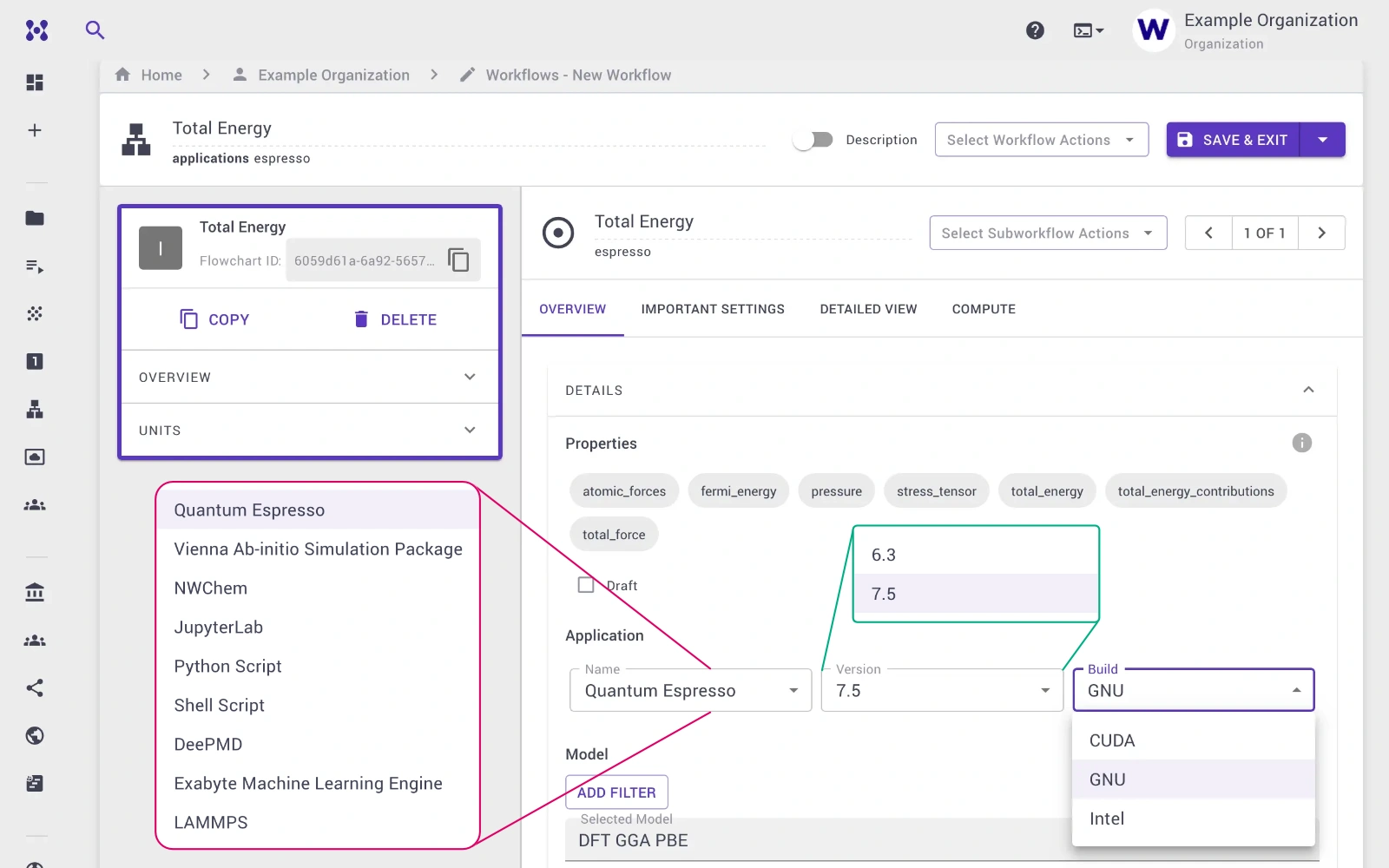
standata holds the platform metadata, including application name, version, build flavor, the GHCR image tag to pull, and the runtime environment variables. The platform reads this repository to populate the application dropdown in the web-interface. Necessary modulefiles are also generated based on these metadata for CLI use.
The two repositories are coupled by imageName and imageTag: the value
provided to standata must exactly match the value registered in
application-containers-public. As a result, the container pull request must be
merged and the image published before the standata pull request can be merged.
flowchart TB
    Dev[Developer machine]

    subgraph containers["application-containers-public"]
        AppRepo[manifest.yml + .def files]
        GHA[GitHub Actions]
        GHCR[GHCR images]
        AppRepo --> GHA --> GHCR
    end

    subgraph standata["standata"]
        Meta[applications YAML\n+ executables + templates]
    end

    Platform[Mat3ra platform]

    Dev -->|"PR: .def + manifest.yml"| AppRepo
    Dev -->|"PR: apps YAML + executables + templates"| Meta
    GHCR -->|"imageName + imageTag"| Meta
    Meta --> Platform
2. application-containers-public repository
2.1. Fork and clone the repository
First, fork github.com/Exabyte-io/application-containers-public on GitHub, then clone the fork locally. The top-level layout is:
1 2 3 4 5 6 7 8 | |
Under base/ are foundational images: AlmaLinux base, GNU toolchain variant,
Intel OneAPI variant, NVIDIA HPC SDK variant, and so on. Each application has
its own subdirectory containing one .def file per build variant.
2.2. Add the .def file
Add the Apptainer definition file under the appropriate application directory,
e.g. espresso/espresso-7.5-gnu.def. Two conventions must be followed.
First, bootstrap from an existing base image using Bootstrap: oras wherever
possible:
1 2 | |
This reuses tested toolchains and keeps build times short.
Second, source the parent environment file at the top of %post:
1 2 3 4 | |
This picks up environment variables (e.g. OpenMPI PATH and LD_LIBRARY_PATH)
set by the parent base image. Application-specific runtime variables belong in
the %environment section.
Multi-stage builds
In order to keep image size small, use a first stage that compiles against the large toolchain, then copy only the compiled executables into a lightweight final stage. The Mat3ra platform bind-mounts the required runtime libraries from the host compute node at job execution time.
Do not bake large toolchains into the image
Libraries such as NVIDIA HPC SDK and Intel OneAPI are pre-installed on the
clusters and available via NFS. Embedding them would produce images tens of
GB in size. Declare them instead as environmentVariables in standata
(see Section 3.2).
2.3. Register the image in manifest.yml
Open manifest.yml at the repository root and add an entry for the new
application:
1 2 3 | |
The three fields are:
name→ the image name in the registry.path→ location of the.deffile relative to the repository root.tag→ follows the convention<version>-<toolchain>-<N>whereNis a build iteration starting from0. BumpNwhenever the recipe changes without a version change for the application; the CI treats tags as immutable and skips a build if the tag already exists.
2.4. Open the pull request and verify the build
Open a pull request against the main branch of
application-containers-public. The CI workflow iterates over manifest.yml,
checks whether each tag already exists in GHCR, and if not, runs
apptainer build and oras push. On pull requests the push step is skipped
(dry run); the image is published only after the PR is merged.
After merge, the image is available at:
1 | |
The image name, and tag are needed in the next section.
2.5. Example Pull Requests
3. standata repository
Info
Although the standata repository contains JavaScript code, the only
changes required to add new application are in the YAML files. YAML is a
human-readable data serialization format, containing key-value pairs, lists,
and nested structures, very similar to JSON or dictionaries in Python and
other programming languages.
3.1. Fork and clone the repository
Fork github.com/Exabyte-io/standata and clone locally. The relevant subtree is:
1 2 3 4 5 6 7 8 | |
Each application has its own YAML file under applications/, and
application_data.yml is the index that the build process reads.
3.2. Add application version block
Create or extend the YAML file for the new application, e.g.
assets/applications/applications/espresso.yml. Each version block follows this
structure:
1 2 3 4 5 6 7 8 9 10 11 12 | |
The imageName and imageTag fields must exactly match what was registered in
manifest.yml in the container repository. This is the link between the two
repositories.
For applications that require mapping host-side toolchains (e.g. NVIDIA HPC SDK
or Intel OneAPI), declare the Apptainer environment forwarding variables under
environmentVariables. The prefix APPTAINERENV_ instructs Apptainer to inject
the variable into the container at runtime:
1 2 3 | |
SOFTWARE_LIBRARIES_PATH is a platform-native variable that resolves to the
correct host directory for the cluster the job lands on. Consult an existing
CUDA or Intel entry in espresso.yml as a template when the exact paths are
unknown.
The remaining fields are:
isDefault: true→ marks the version selected by default in the UI.hasAdvancedComputeOptions: true→ exposes the advanced compute settings panel.build→ the flavor label shown in the version submenu (e.g.GNU,Intel,CUDA).
3.3. Register in application_data.yml
Add a single !include statement to
assets/applications/applications/application_data.yml:
1 | |
In order to expose executables in the UI or provide starter input templates,
also populate assets/applications/executables/<app>/ and
assets/applications/templates/<app>/ respectively.
3.4. Add an executable
The executable YAML describes the command that the platform runs, the input
files it expects, and the results and monitors it produces. Create
assets/applications/executables/myapp/myapp.yml following the LAMMPS
pattern:
1 2 3 4 5 6 7 8 9 10 11 12 13 14 | |
Each key in flavors corresponds to one flavor visible in the workflow designer
unit editor. The input list names the input files the template system will
render. monitors controls which output streams the platform captures in real
time (at minimum standard_output).
Then register the executable in assets/applications/executables/tree.yml:
1 2 | |
3.5. Add an input file template and flavor
The template system connects the executable flavor to a rendered input file. This is what the user sees and edits inside the workflow designer unit editor.
Step 1: Write the raw input file. Create the actual input content under
assets/applications/input_files_templates/myapp/flavor.in. This is the
default input script that a user starts from. It may be a static file or
contain Jinja template variables if the
platform should substitute material-specific values at runtime.
Step 2: Write the flavor YAML. Create
assets/applications/templates/myapp/flavor.yml:
1 2 3 4 5 | |
The !readFile tag inlines the raw input file at build time. contextProviders
is an optional list of platform context plugins that inject material or job
properties into the template at render time; leave it empty for a static
template.
Step 3: Register the flavor in templates.yml. Add a line to
assets/applications/templates/templates.yml:
1 2 | |
After these three steps, the flavor appears in the unit editor when a user
selects myapp as the application and myexec as the executable.
3.6. Build and validate locally
Run the following commands in the standata checkout to verify that the YAML
parses correctly and the generated data looks as expected:
1 2 3 4 | |
build:applications generates per-application JSON under data/applications/.
Inspect the diffs to confirm the version block is present, the imageTag
matches the container repository, the executable flavor appears, and the
template content renders correctly.
3.7. Open the pull request
Open a pull request against standata only after the container pull request
has been merged and the image is live in GHCR. Commit the generated files under
data/ and dist/ produced by the build step above.
3.8. Example Pull Requests
One may ignore the auto-generated files under data/, dist/, and src/
directories while reviewing the PR changes.
4. Merge order and checklist
Merge order is mandatory: the container pull request must be merged first so
that the image tag referenced in standata is valid when that PR is reviewed.
4.1. application-containers-public PR Checklist
✅ .def file added under the correct application directory
✅ manifest.yml entry with correct name, path, and tag
✅ CI passes (dry-run build succeeds)
✅ Merged first
4.2. standata PR Checklist
✅ applications/myapp.yml with matching imageName and imageTag
✅ !include added to application_data.yml
✅ executables/myapp/myapp.yml with at least one flavor
✅ myapp entry added to executables/tree.yml
✅ input_files_templates/myapp/flavor.in created
✅ templates/myapp/flavor.yml created
✅ !include added to templates/templates.yml
✅ npm run build outputs committed
✅ Merged after the container PR is merged
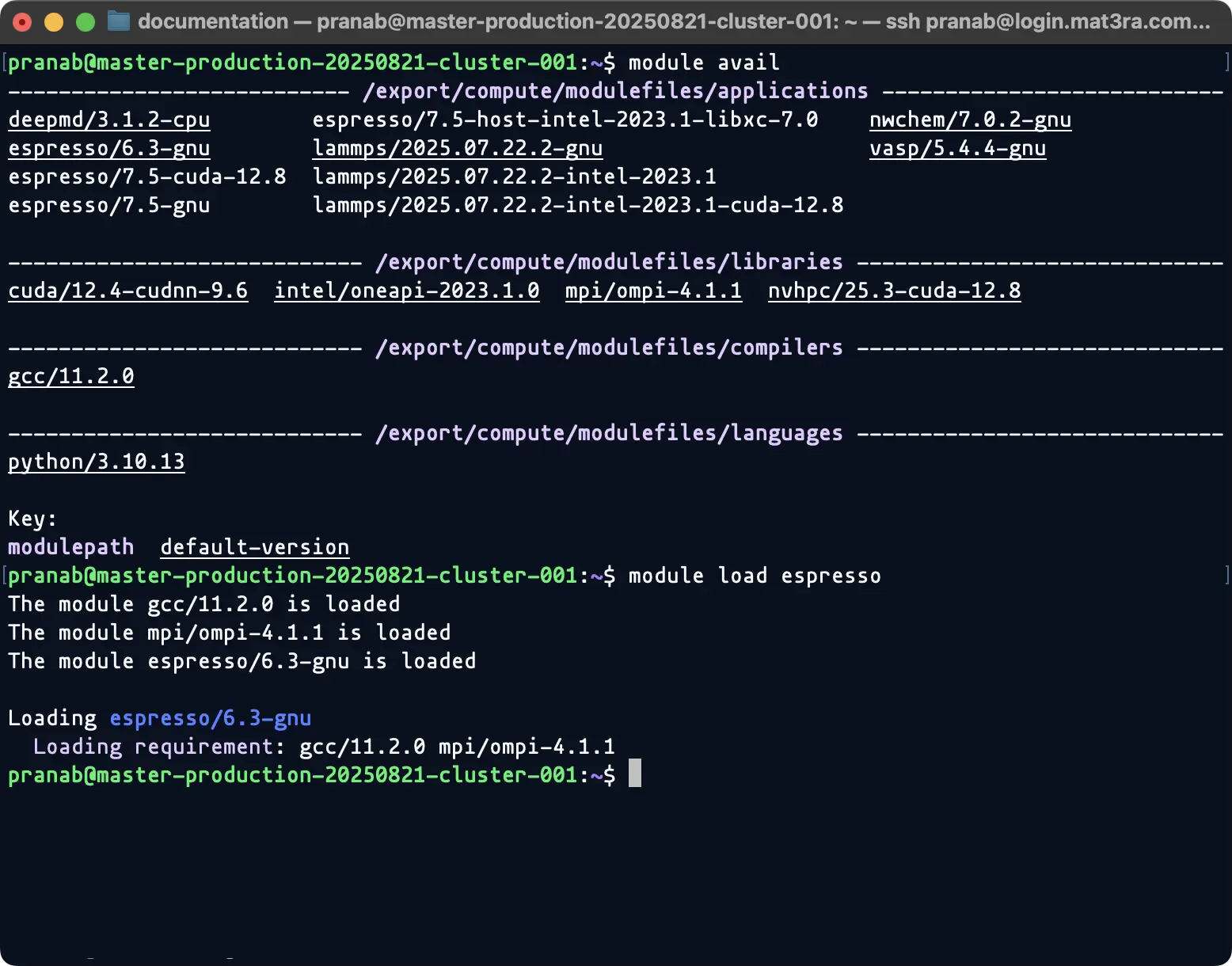
Once both PRs are merged and the next platform release ships, the application appears in the application dropdown for every user. The container image is pulled from GHCR on first use, the version block drives the runtime environment, and the flavor/template pair appears in the workflow designer unit editor. The application is also available via modulefile for CLI use.
5. References
- Apptainer Definition and container building: Adding New Software
- Container repository: github.com/Exabyte-io/application-containers-public
- Metadata repository: github.com/Exabyte-io/standata
- Published images: Exabyte-io packages on GHCR